Seeyon BPM guide with screenshots: templates, forms, roles, workflows and an expense example
GNS Engineering Team 6 min read

Many organisations first encounter BPM as a digital approval signature. Its real value is making cross-department work traceable: every step has an owner, completion rule, deadline, permission and record. This article focuses on how an administrator configures Seeyon BPM and uses expense reimbursement as a complete example.
This is the BPM article in the GNS Seeyon practical guide series:
- HR: onboarding, account opening, offboarding and asset recovery
- DMS: libraries, sharing permissions, versions and BPM filing
Screenshots come from the Seeyon E-office V11 demo and are used only to assess functionality and UX. Account tabs, notification areas and unnecessary personal information were cropped. No production workflow was submitted, changed or published.
Three connected layers
| Layer | Administrator decisions | User experience |
|---|---|---|
| Form | Fields, sections, required rules, formats, defaults and permissions | A clear set of information to complete |
| Workflow | Approvers, order, parallel work, conditions, SLAs and notices | Only relevant people receive a task |
| Record | Attachments, DMS folder, sharing and retention | The final version and decision trail remain available |
The most common error is forcing every case through one linear route. Not every claim needs the CEO, and an exit should not wait for HR to finish before IT is told. Define the risks and exceptions first, then model them with conditions and parallel branches.
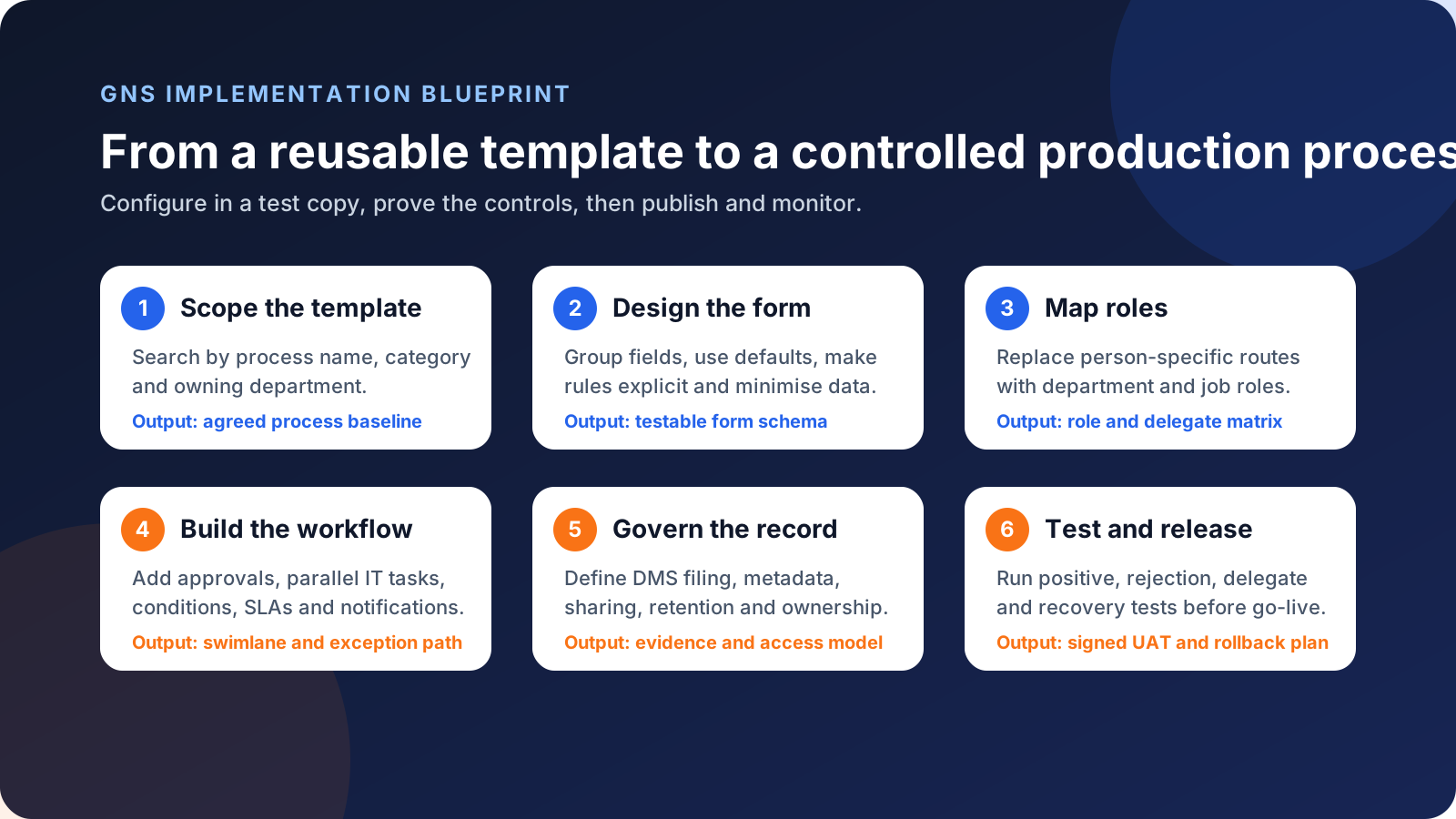
Figure 1: Agree the process, form and roles before configuring the workflow, DMS controls and acceptance tests.
Part 1: configure a BPM process
Step 1: choose a template
The New Tasks catalogue groups workflows by business area. The demo includes Expense Management, Assets Management, HR, Supplier management, Admin Review, Contract management, Procurement, Project Management, Problem Management, Incident Management and Management of Change.
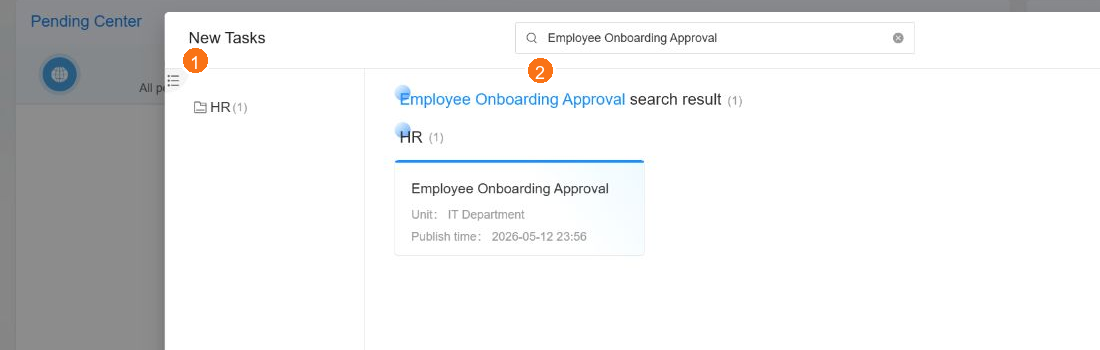
Figure 2: New Tasks shows category, search result, owning unit and publication date. The screenshot searches for Employee Onboarding Approval in the HR category.
Observed examples include 25 HR templates, 11 asset workflows, 13 administrative-review workflows, seven expense workflows, six contract workflows and six project workflows.
Before publishing a template, verify its owner and version, confirm that it matches the underlying business process, copy it into a test workflow, list external systems to integrate and agree the completion criteria with the process owner.
Step 2: design the form by responsibility
The expense template separates Basic Information, Reimbursement Information and Payee Information, allowing the claimant to complete the basic record, claim details and payment arrangement in a logical order.
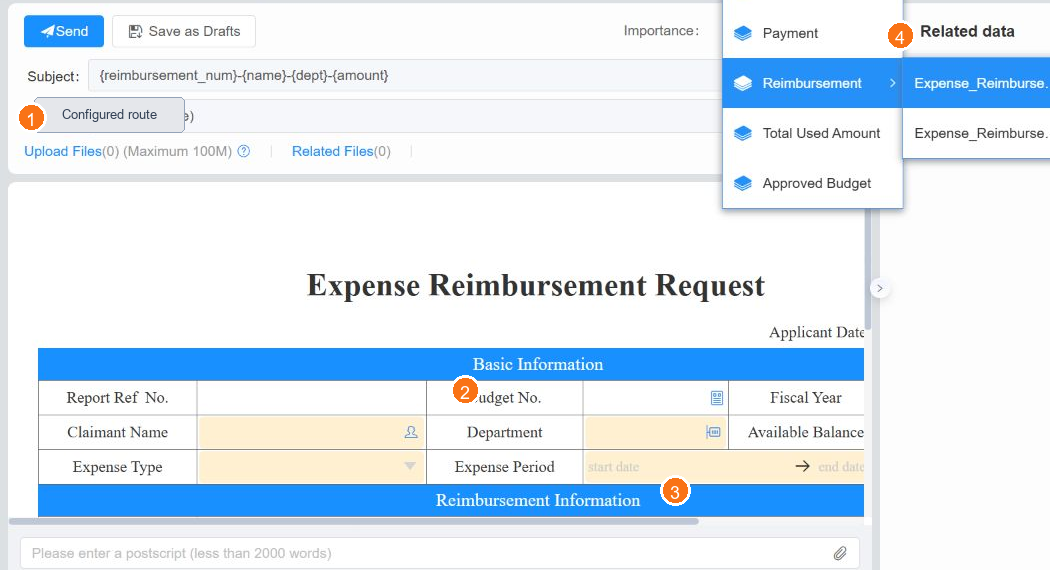
Figure 3: The claim form separates the core record, reimbursement details and payment information, with auto subject, flow, draft and submit controls above.
Classify the fields before building them:
| Type | Examples | Control |
|---|---|---|
| System-populated | Request date, requester, department, employee ID | Reduce typing but verify source data |
| User selection | Expense type, urgency, grade, employing company | Keep choices aligned with policy |
| Conditional | Budget number, bank account, handover person | Show or require only when relevant |
| Sensitive | Identity, bank account, address | Restrict view, edit and download by role |
The demo claim subject uses a pattern such as {reimbursement_num}-{name}-{dept}-{amount}. If the title appears in email, tasks or sharing lists, avoid unnecessary personal information.
Step 3: map roles, delegates and rules
Use roles rather than permanently named individuals. A claim can refer to the line manager, finance lead and a named budget owner, while a production process should still assign named owners and delegates.
| Control table | Contents |
|---|---|
| Roles | Department leader, HR, finance lead, IT engineer, application owner and DMS administrator |
| Delegates | Primary and secondary delegate, effective dates and covered workflows |
| Conditions | Amount threshold, cross-department claim, missing receipt, customer data or manager device |
A practical claim design could send a small local transport claim to the line manager, route a higher amount to a budget owner, and send mismatched payee details to finance. A missing receipt should block the case or create an exception route.
Step 4: validate routing and exceptions
The expense flow should clearly show the applicant, manager, finance and any conditional route. Use the diagram to find repeated approvals, missing delegates and exceptions that cannot be represented.
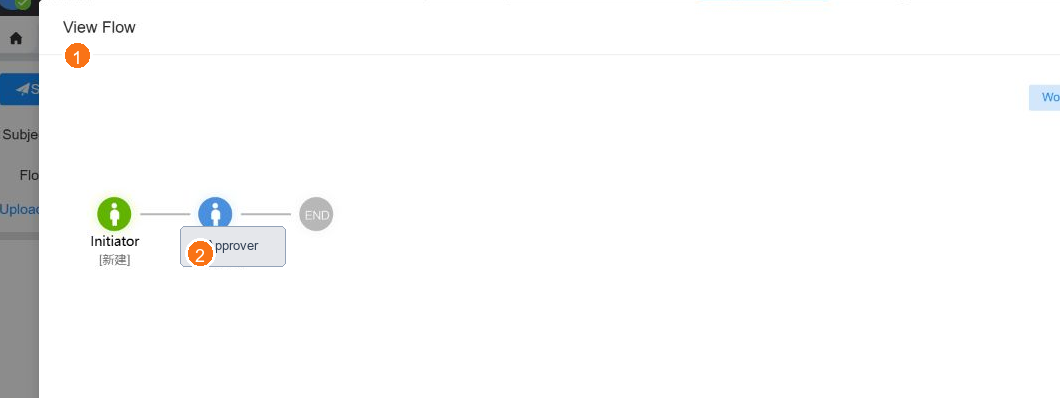
Figure 4: The user can inspect the route before submission. The demo shows one example approval node; a customer design can add amount thresholds and finance review.
For every node, ask who owns it, who covers absence, which tasks can run in parallel, whether it is an approval or a task, what happens after the SLA, what must be reviewed after a return and which evidence must survive closure.
Step 5: add policy controls and closure evidence
GNS recommended controls include detecting a missing or duplicate receipt, routing by amount or budget, reviewing mismatched payee details, and filing the approved PDF, receipt and payment data into a controlled DMS folder.
Other workflows need equivalent closure evidence: onboarding requires account and device completion; offboarding requires access disablement and asset recovery; contracts require the final approved version. See the Seeyon DMS guide for the record rules.
Step 6: test and release
Test the normal route, rejection and return, parallel departments, delegates, permissions, notifications, DMS filing and exceptions. Use fictional data only.
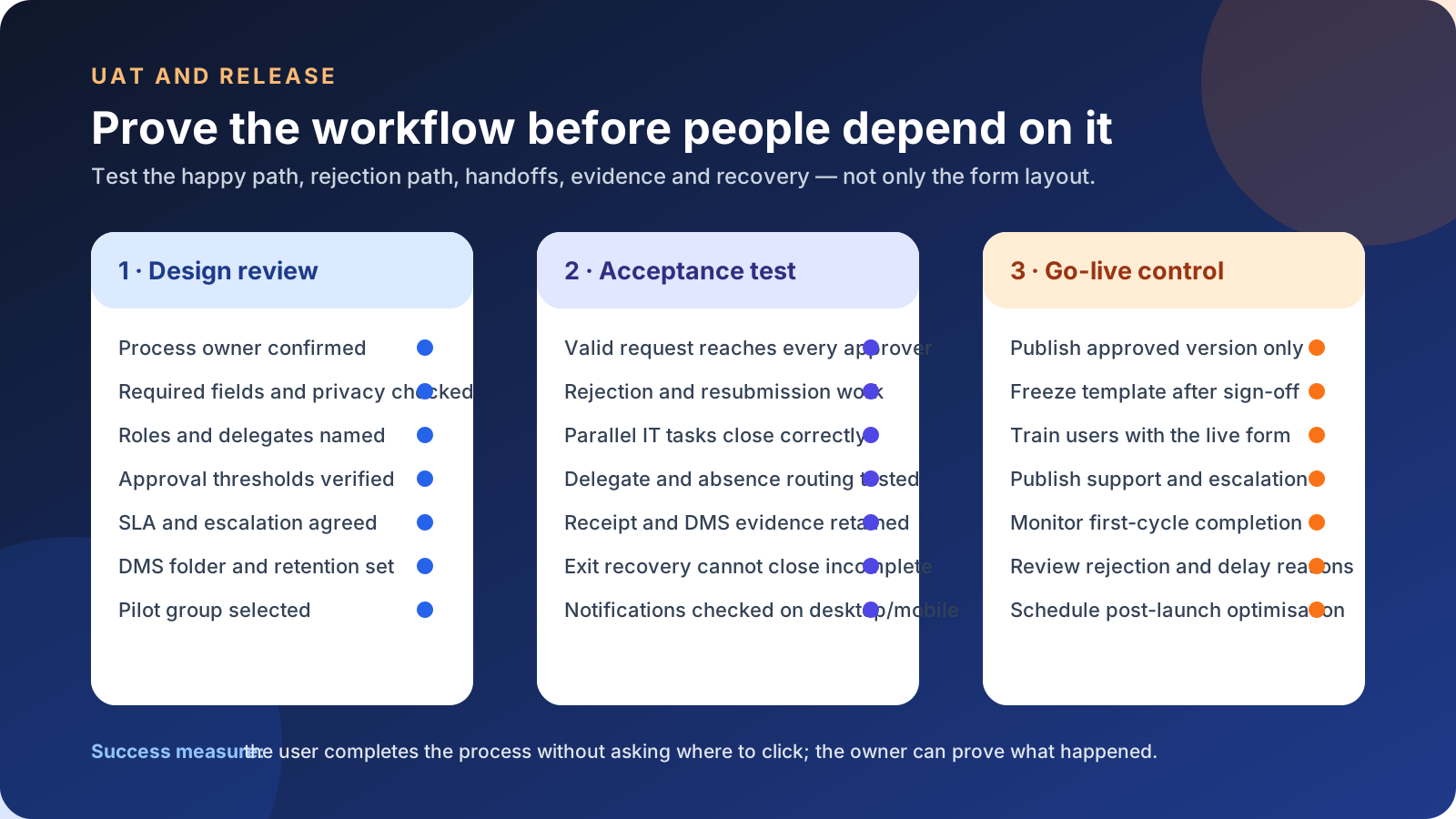
Figure 5: A release gate should cover more than a successful form submission.
After sign-off, publish the approved version, assign the process owner, support contact and rollback plan, then review cycle time, return reasons and bottlenecks during the first live cycle.
Part 2: how a user completes a workflow
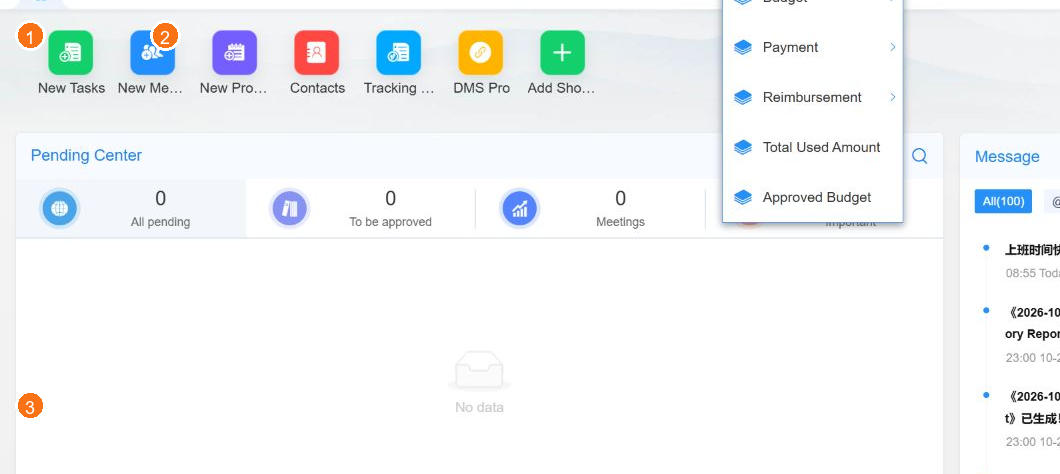
Figure 6: Users begin from the Pending Center and shortcuts instead of remembering every module.
A typical expense-claim sequence is:
- Open Expense Management → Reimbursement.
- Verify the date, department and budget fields.
- Select the expense type and period.
- Enter the amount and justification, then attach the receipt.
- Verify the payee and bank information.
- Use View Flow to inspect the next owner.
- Save a draft until ready, then press Send.
- Follow the case from Pending Center or historical approval.
Good UX is not only a form that accepts data. The user should know where the case is waiting, who owns it next, why it is waiting and what must be supplied if it is returned.
Continue with the series
- Seeyon HR BPM: onboarding, IT account opening, offboarding and asset recovery
- Seeyon DMS: libraries, sharing, versions and BPM filing
GNS can support requirements, process and form design, roles and conditions, integration, testing, training and local after-sales support. To arrange a Hong Kong-focused demonstration, contact GNS.
Based on the Seeyon E-office V11 demonstration environment observed on 29 October 2026. The demo account was used only for read-only functionality and UX assessment. Actual fields, workflows, features and compliance requirements depend on the licensed version and implementation.
FAQ
Does Seeyon BPM require custom programming from the start?
Usually not. The demo provides categorised templates, form sections, roles and workflow diagrams that can be configured. External integration, complex calculations and data cleansing still require technical design and testing.
Is a good workflow diagram enough for a BPM implementation?
No. A usable process also needs form fields, sensitive-data permissions, delegates, amount or department conditions, return rules, notifications, DMS filing and closure evidence.
Can expense approvals route by amount?
Yes. Conditions can route by amount, expense type, budget, department or payee data. A small transport claim could go to the line manager, while a claim above a threshold could add finance or a budget owner.
How should sensitive fields be protected?
Identity, bank, payroll and legal information should be restricted by role for view, edit and download. Not every approver needs the complete personal or financial record.
How should a new workflow be tested?
Test valid submission, rejection, return and resubmission, delegates, conditions, parallel departments, notifications, DMS filing and exceptions. Use fictional data and involve the actual process owner and users.
Where are the HR and DMS details?
This article focuses on BPM setup and a generic expense flow. The Seeyon HR guide covers onboarding, account opening, offboarding and asset recovery; the DMS guide covers libraries, sharing, versions and BPM filing.