Seeyon DMS guide with screenshots: libraries, sharing, versions and BPM filing
GNS Engineering Team 6 min read

A file server provides storage. A DMS should provide control. Common failures include multiple files called final, permanent sharing links, process records with no receipts, and department files owned only by an employee who has left.
This is the DMS article in the GNS Seeyon practical guide series. Read the Seeyon BPM guide for workflow setup and the Seeyon HR guide for onboarding and offboarding.
A silent 45-second click-by-click walkthrough: open DMS and Documents, expand Shared Management, select Shared by others and Public Share, review access, comment, download and date fields, search for a file, open More, then switch to the project library. Every click is followed by the resulting screen. Download the MP4 if playback is unavailable.
The screenshots are from the Seeyon E-office V11 demo and are used only for read-only assessment. Account tabs, notifications and unnecessary author names were cropped. No production document was uploaded, shared, moved or deleted.
Six controls for a managed document
| Control | Question |
|---|---|
| Source | Which process, department or employee created it? |
| Type | Contract, policy, finance, HR, project or training record? |
| Owner | Which role must maintain it? |
| Sensitivity | Who can view, download, share or edit it? |
| Version | Draft, pending, approved, superseded or archived? |
| Retention | When is it reviewed, archived or disposed of? |
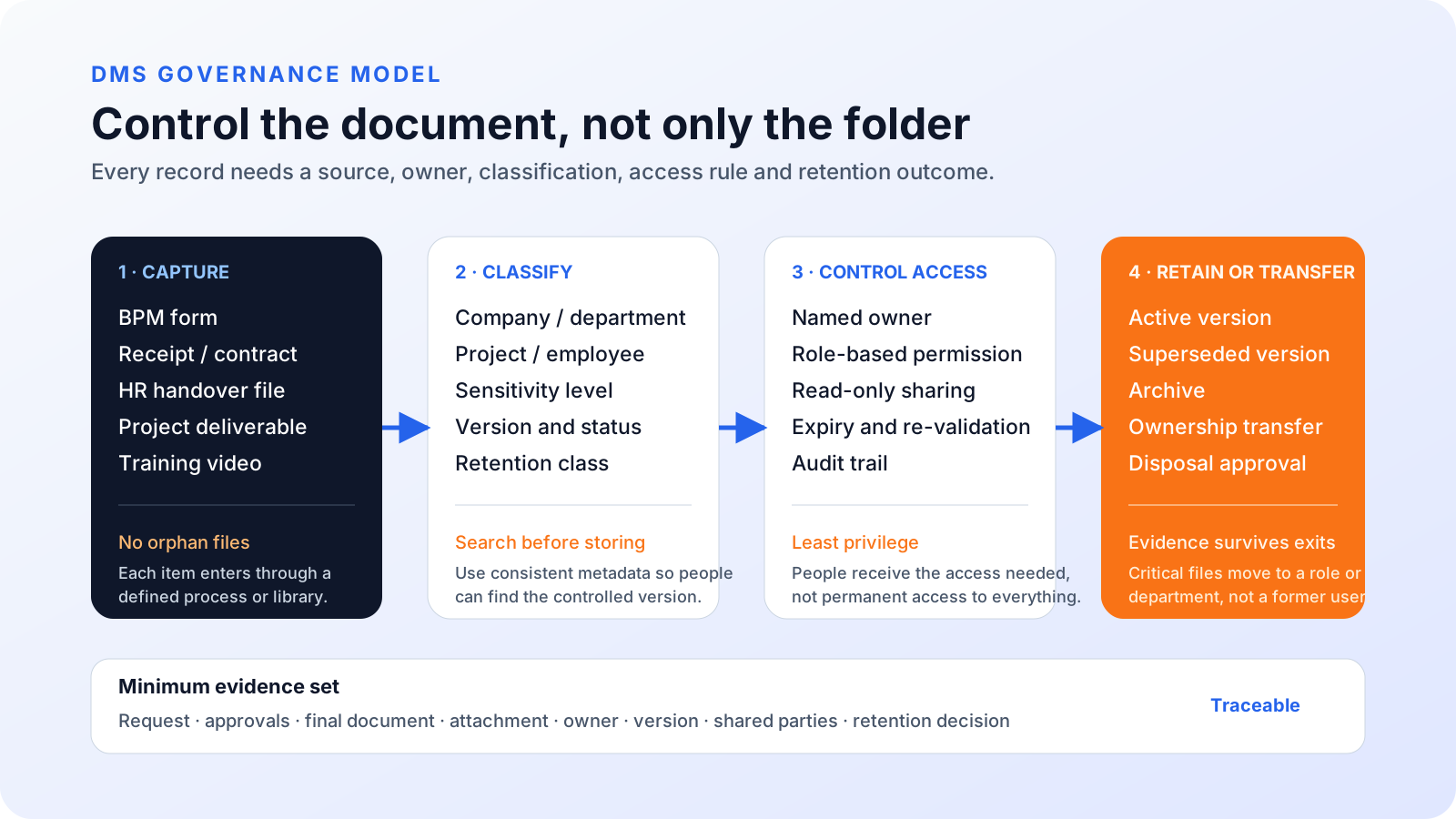
Figure 1: A folder alone is not document governance. Source, classification, access, ownership and retention make the record controllable.
Part 1: DMS setup
Step 1: define libraries before uploading
The observed document centre contains My Document, Shared Management, Doc Libs and Video Square, with group, company and project libraries plus unit and learning videos.
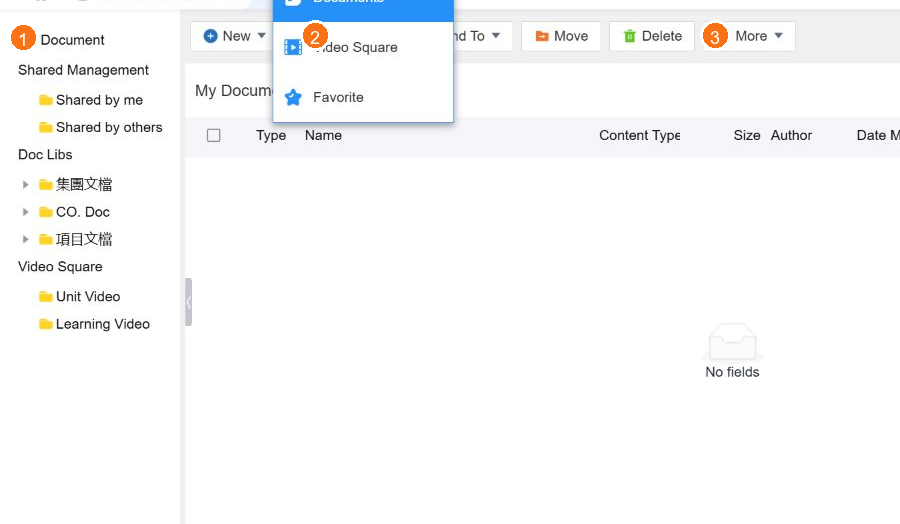
Figure 2: The document centre separates personal, shared and controlled libraries. The toolbar provides New, Upload, Send To, Move, Delete and More.
Assign one primary responsibility to each library: company policy, department procedure, project delivery, employee record, finance evidence or training content. Define who may create, view and approve records in each area.
Step 2: standardise naming and versions
A practical format is [type]-[number]-[name]-[version]-[date], for example CON-PRJ025-Vendor-Agreement-v1.0-20261029.
Decide when a new version is required, whether an approved file can be overwritten, who may read superseded versions and how scanned forms, spreadsheets and email attachments are named.
Step 3: control sharing
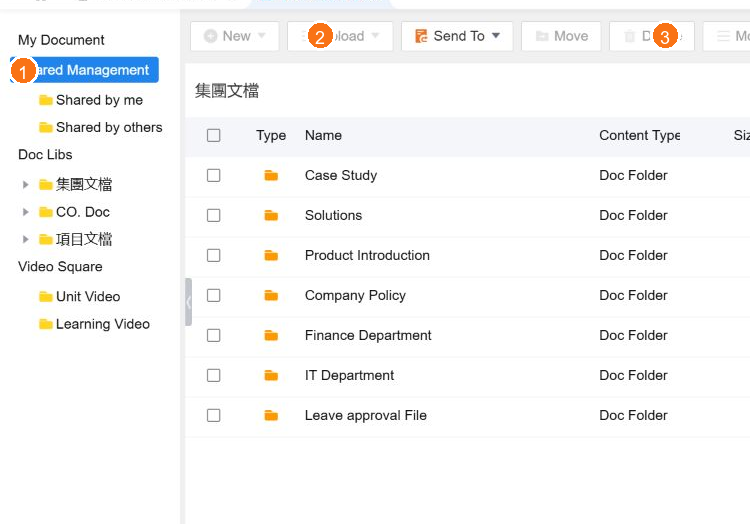
Figure 3: Shared by me provides a view of sharing managed by the current user. Author names were cropped for publication.
What document-management evidence is visible?
The observed Shared by others → Public Share list directly shows:
| Field | Observed example | Purpose |
|---|---|---|
| Access count | The first file shows 4 opens | Indicates whether the document is being read |
| Comment count | 0 | Tracks discussion and issues |
| Download count | 0 | Separates view activity from downloading |
| Share date | 2026-06-08 18:33 | Shows when the record was shared |
| Date modified | 2026-05-28 14:19 | Identifies the latest recorded change |
| Create date | 2026-05-28 14:19 | Confirms when the record was created |
This list presents aggregate counts and dates. It does not expose a named list of viewers or a version total in the observed view. A production implementation that requires “who opened, downloaded or changed this file and when” should enable and test the document-detail, version-history or administrator-audit view, including role permissions and retention requirements.
| Action | Typical owner | Control |
|---|---|---|
| View | Department or named users | Exclude confidential finance, HR or legal files |
| Download | Users who need offline access | Consider watermark or download evidence |
| Upload | Document creator | Do not upload straight into an approved area |
| Edit | Document owner | Create a version rather than overwrite |
| Share | Owner or DMS administrator | Named recipient, read-only and expiry |
| Delete | DMS administrator | Use archive or approved disposition |
Ask whether the recipient needs download or view-only, whether an internal share is sufficient, when the link expires, and who reviews the sharing record.
Step 4: define BPM filing targets
| Workflow | DMS destination | Evidence |
|---|---|---|
| Expense | Finance / Claims / YYYY-MM | Form PDF, receipts and approval |
| Onboarding | HR / Employee ID / Onboarding | Contract, acknowledgements, accounts and assets |
| Offboarding | HR / Employee ID / Offboarding | Exit form, handover and recovery proof |
| Contract | Project / Contract / Contract ID | Final contract, legal review and approved version |
| Procurement | Procurement / Supplier / PO | Quote, comparison, approval and acceptance |
The process and the DMS record should remain connected, but the department must still be able to find the official document when access to an old case is restricted.
Step 5: define the lifecycle
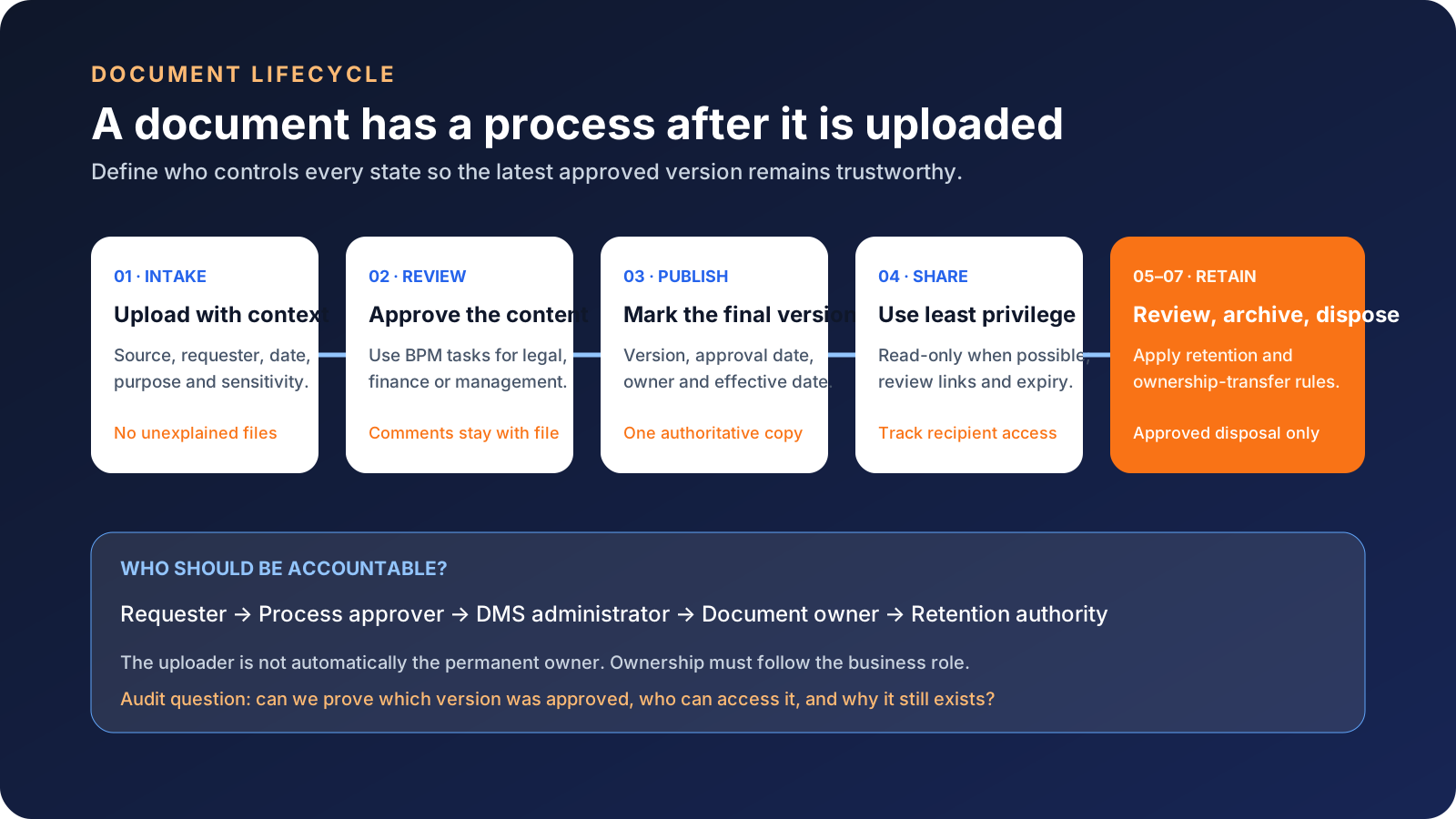
Figure 4: A document passes through intake, review, publication, sharing, review, archive and disposition. The uploader is not automatically the permanent owner.
Store the process number, role owner, sensitivity, current and superseded versions, approval and effective dates, next review date, retention class and exit-transfer owner.
Step 6: acceptance testing
Test rejected formats, duplicate names, unauthorised access, external sharing, BPM filing, ownership transfer and retained records. A successful upload is not enough.
Part 2: daily DMS use
Publish a company policy
Create a draft with policy number, version and applicable departments, approve it through BPM, move it to the controlled company library, mark the earlier version as superseded and set the next review date.
Share a project contract
Create a project-numbered folder, upload the approved contract and approval evidence, use Send To for read-only finance and legal access, review the share record, then revoke or archive access when the project ends.
Handle an employee exit
Have the manager decide which files should be retained or transferred, move ownership to the manager or department folder, revoke external shares, apply retention to personal copies and attach the transfer evidence to the exit workflow.
Search before creating another copy
The file list exposes type, name, content type, size, author, modified and creation dates, opens and comments. Use the process number and name first, check version and ownership before use, and comment on uncertainty instead of creating a new “final” file.
Six DMS mistakes to avoid
- Every employee can read HR, payroll or legal records.
- A person is the only owner of a department document.
- Multiple “final” contracts exist without version numbers.
- Share links never expire.
- BPM stores a form but not the receipt or approved document.
- An exit deletes the employee folder before department content is transferred.
Continue with the series
- Seeyon BPM: templates, forms, roles, workflows and expense claims
- Seeyon HR BPM: onboarding, IT account opening, offboarding and recovery
GNS can design the Seeyon DMS structure, permissions, metadata, versions, BPM filing, exit transfers, legacy migration, testing, training and local support. Contact GNS to arrange a practical DMS demonstration.
Based on the Seeyon E-office V11 demo observed on 29 October 2026. No production document was changed. Actual permissions, retention and compliance requirements depend on company policy and implementation.
FAQ
Is Seeyon DMS just another file server?
No. It can combine libraries, sharing, metadata, versions, opens and comments with BPM evidence. The governance outcome depends on folder, naming, permission and retention design.
Can DMS receive documents from Seeyon BPM?
A workflow can file its final form, approval PDF, receipt, contract and attachments into a controlled folder according to the enterprise permission model. The target folder, naming, owner and sensitivity should be defined before testing.
How should document sharing be controlled?
The demo provides Shared by me, Shared by others and Send To. Use named recipients, read-only access where possible, expiry or revalidation, and regular review of the sharing list.
What happens to an employee's DMS files when they leave?
Files still needed by the department should transfer to the manager or another role owner. Personal copies can then be archived or handled under policy. Deleting the whole folder can remove customer, project or contract records.
How can the company prevent multiple final versions?
Mark a controlled final version at BPM closure, mark old versions as superseded, use process number, version and date in the filename, and restrict replacement of approved files.
How does DMS relate to the BPM and HR guides?
HR workflows create onboarding, contract, handover and exit records; BPM creates approval evidence. DMS stores and governs those outputs by employee, department, project, permission and retention.